

 ChatGPT
  Gemini
  Claude
  Perplexity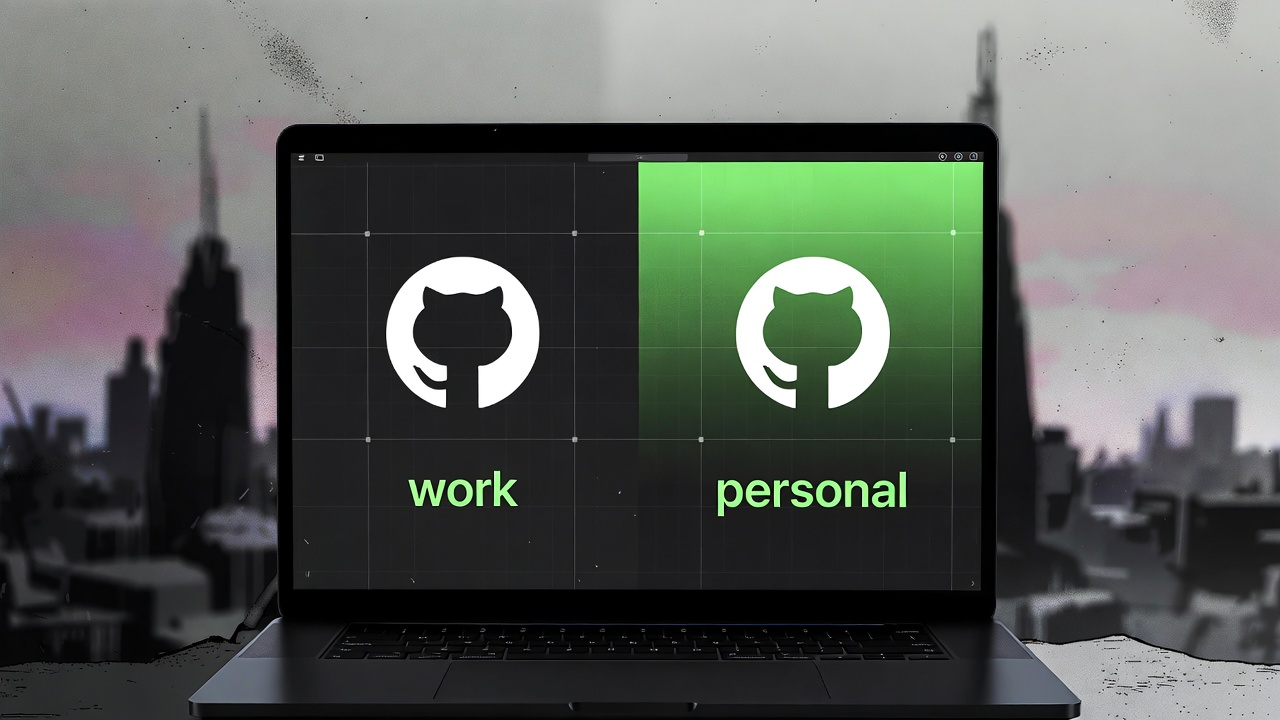
If you contribute to open-source on the side while also pushing commits for your employer, you probably have two GitHub accounts — one personal, one work. The problem: by default Git only knows one identity, so every commit ends up under the same user. Worse, pushing with the wrong SSH key gives you a permission denied error.
The cleanest fix is to give each account its own SSH key and teach your SSH client to pick the right one automatically based on the remote URL. Here is how to do it, step by step.
Step 1: Generate Separate SSH Keys
Open Terminal and create two distinct keys — one for each account. Replace the email addresses with the ones tied to your GitHub accounts.
Personal key:
ssh-keygen -t ed25519 -C "personal@example.com" -f ~/.ssh/id_ed25519_personalWork key:
ssh-keygen -t ed25519 -C "work@company.com" -f ~/.ssh/id_ed25519_workPress Enter to skip the passphrase if you want password-less logins (convenient but slightly less secure). If you do set a passphrase, macOS Keychain can remember it for you.
Step 2: Add the Keys to the SSH Agent
Start the SSH agent and load both keys:
eval "$(ssh-agent -s)"
ssh-add --apple-use-keychain ~/.ssh/id_ed25519_personal
ssh-add --apple-use-keychain ~/.ssh/id_ed25519_work
The --apple-use-keychain flag stores the passphrase in macOS Keychain so you will not be asked for it again.
Step 3: Add the Public Keys to GitHub
Copy each public key to your clipboard.
Personal:
pbcopy < ~/.ssh/id_ed25519_personal.pubWork:
pbcopy < ~/.ssh/id_ed25519_work.pubThen, for each account:
- Log in to GitHub.
- Go to Settings → SSH and GPG keys → New SSH key.
- Paste the key, give it a recognizable title (e.g. “MacBook Personal”), and save.
Step 4: Create the SSH Config File
The SSH config file is what makes the magic happen. It maps custom host aliases to the correct key.
Create or edit ~/.ssh/config:
nano ~/.ssh/configPaste the following:
# Personal GitHub account
Host github.com
  HostName github.com
  User git
  IdentityFile ~/.ssh/id_ed25519_personal
  IdentitiesOnly yes

# Work GitHub account
Host github.com-work
  HostName github.com
  User git
  IdentityFile ~/.ssh/id_ed25519_work
  IdentitiesOnly yes
Press Ctrl+X, then Y, then Enter to save and exit.
The key takeaway: the personal account uses the standard github.com host, while the work account uses the alias github.com-work. Git will match the host in the remote URL and automatically select the right key.
Step 5: Clone Repositories Using the Correct Alias
When cloning, modify the URL to match the alias you defined.
Personal repos — use the normal URL:
git clone git@github.com:your-personal-username/my-project.gitWork repos — swap the host:
git clone git@github.com-work:your-work-org/team-project.gitNotice the github.com-work part? That is the alias from your SSH config. SSH sees it, swaps in the real hostname (github.com), and uses the work key.
Already cloned? Update the remote
If you already have a repo checked out and need to switch it to the work identity:
git remote set-url origin git@github.com-work:your-work-org/team-project.gitStep 6: Set the Correct Git User Per Repository
Even with the right SSH key, you still need Git to stamp the correct name and email on every commit. Set them per repo instead of globally:
cd ~/projects/team-project
git config user.name "Your Work Name"
git config user.email "work@company.com"
Repeat for personal repos with your personal name and email. This ensures commits carry the right identity regardless of which account the SSH key belongs to.
Optional: Automate with Conditional Includes
Setting user.name and user.email manually in every new repo gets old fast. Git conditional includes solve this by automatically applying a config when you are inside a specific directory.
1. Organize your projects
Keep work and personal repos in separate folders:
~/projects/personal/   ← personal repos live here
~/projects/work/      ← work repos live here
2. Create per-identity config files
~/.gitconfig-personal:
[user]
    name = Your Name
email = personal@example.com~/.gitconfig-work:
[user]
    name = Your Work Name
    email = work@company.com
3. Add conditional includes to your main config
Edit ~/.gitconfig:
[includeIf "gitdir:~/projects/personal/"]
    path = ~/.gitconfig-personal

[includeIf "gitdir:~/projects/work/"]
    path = ~/.gitconfig-work
Now, whenever you git commit inside ~/projects/work/, Git automatically uses your work identity. Inside ~/projects/personal/, it uses your personal one. No manual config needed.
Verifying Everything Works
Run a quick SSH test for each alias:
ssh -T git@github.com
# Hi your-personal-username! You've successfully authenticated...

ssh -T git@github.com-work
# Hi your-work-username! You've successfully authenticated...
If you see your correct username in each response, the setup is complete.
Troubleshooting
“Permission denied (publickey)” — Make sure the key is added to the agent (ssh-add -l) and the public key is uploaded to the correct GitHub account.
Wrong identity on commits — Check git config user.email inside the repo. If it does not match the GitHub account you pushed from, GitHub will not link the commit to your profile.
SSH keeps asking for a passphrase — Re-add the key with --apple-use-keychain:
ssh-add --apple-use-keychain ~/.ssh/id_ed25519_personalOnce configured, pushing to personal and work repos is completely seamless — the right key and the right identity are selected automatically.